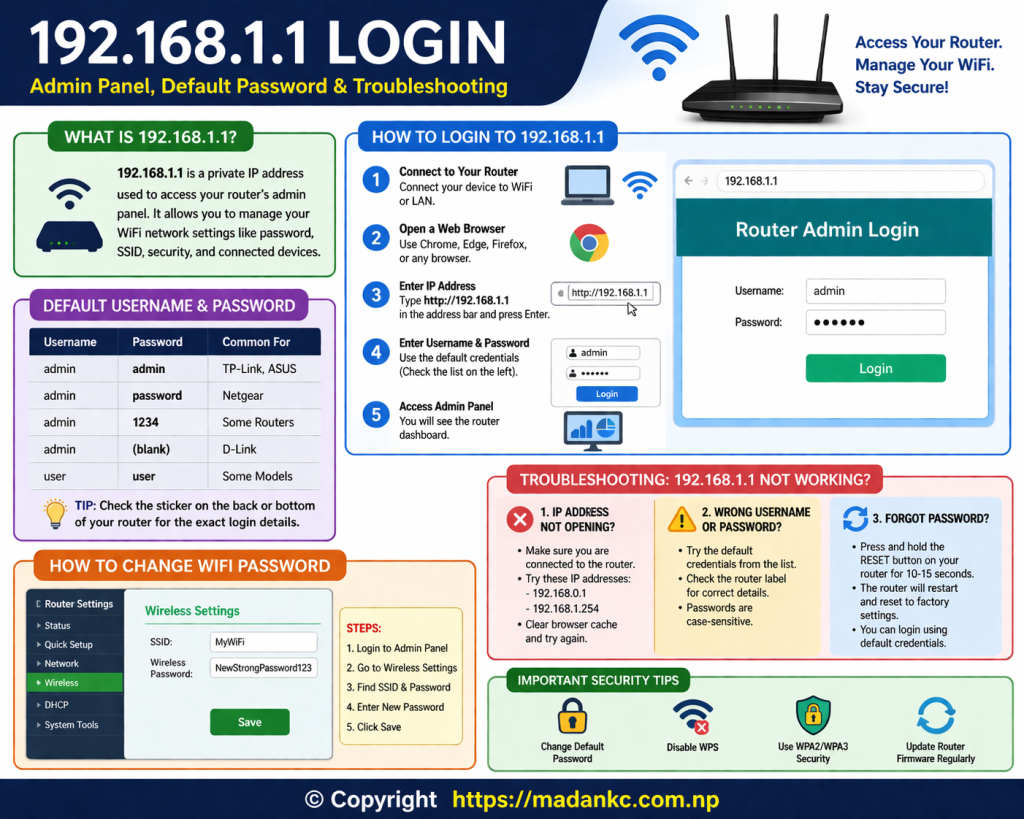
192.168.1.1 Login – Admin Panel, Default Password & Troubleshooting [2026]
⚡ Quick Answer
Type 192.168.1.1 in your browser address bar → enter username admin and password admin (or check the sticker on your router). This opens your router’s admin panel where you can change Wi-Fi settings, password, and security.
192.168.1.1 is the default gateway IP address used by millions of routers worldwide — including TP-Link, Linksys, Asus, Cisco, and D-Link. It gives you full access to your router’s admin panel to manage Wi-Fi, security, connected devices, and more. This guide walks you through everything: login, default passwords, troubleshooting, and security.
What is 192.168.1.1?
192.168.1.1 is a private IP address that router manufacturers assign as the default gateway for their devices. Think of it as the “front door” to your router’s control panel. By typing it into any browser, you reach the admin interface where you can configure your entire home network.
It belongs to the 192.168.1.0/24 private subnet defined by RFC 1918 — a standard that reserves certain IP ranges exclusively for use inside local networks. This means it never appears on the public internet and is completely safe to access.
192.168.1.1 doesn’t work for your router, it might be using 192.168.0.1 instead. Check our 192.168.0.1 Complete Guide to find out.How to Login to 192.168.1.1 — Step by Step
Make sure your device is connected via Wi-Fi or Ethernet cable. For first-time setup, use an Ethernet cable — it’s more reliable.
Chrome, Firefox, Edge, or Safari all work. Do NOT use a search engine — type directly in the address bar.
In the address bar at the top of the browser, type exactly: http://192.168.1.1 — then press Enter.
A login page appears. Enter your username and password. If you’ve never changed them, use the default credentials from the table below.
The router admin dashboard loads. You can now change Wi-Fi name, password, security settings, parental controls, and more.
Default Username & Password — All Major Brands
If you’ve never changed your router credentials, try these defaults. You can also check the sticker on the back or bottom of your router.
| Brand | Default IP | Username | Password |
|---|---|---|---|
| TP-Link | 192.168.1.1 | admin | admin |
| Linksys | 192.168.1.1 | admin | admin |
| Asus | 192.168.1.1 | admin | admin |
| Cisco | 192.168.1.1 | admin | admin |
| D-Link | 192.168.1.1 | admin | blank |
| Netgear | 192.168.1.1 | admin | password |
| Tenda | 192.168.1.1 | admin | admin |
| Huawei | 192.168.1.1 | admin | admin |
| ZTE | 192.168.1.1 | admin | admin |
| Belkin | 192.168.1.1 | admin | blank |
| TRENDnet | 192.168.1.1 | admin | admin |
| Motorola | 192.168.1.1 | admin | motorola |
Brand-Specific Login Guide
Click your router brand below for exact step-by-step login instructions:
How to Login from Mobile
- Go to Settings → Wi-Fi and connect to your home network.
- Open Chrome or any browser on your phone.
- Tap the address bar at the top and type
192.168.1.1 - Tap Go or press Enter on your keyboard.
- The router login page appears — enter your username and password.
- Go to Settings → Wi-Fi and connect to your home Wi-Fi network.
- Open Safari browser.
- In the address bar, type
192.168.1.1and tap Go. - The router login page will appear — enter your credentials.
- If the page doesn’t load, check Settings → Wi-Fi → tap (i) → confirm the Router IP.
192.168.1.1 Not Working? — 7 Fixes
Your device must be connected to your own router’s Wi-Fi or Ethernet. If you’re on mobile data or a neighbor’s Wi-Fi, this IP will not work at all.
Not every router uses 192.168.1.1. Find your exact gateway using the tabs below.
- Press
Windows Key + R, typecmd, press Enter. - Type
ipconfigand press Enter. - Look for Default Gateway — that is your router’s IP.
- Go to System Settings → Network.
- Select your active connection (Wi-Fi or Ethernet) → click Details.
- Open the TCP/IP tab — look for the Router field.
- Go to Settings → Wi-Fi.
- Tap your connected network name.
- Tap Advanced — look for Gateway.
- Go to Settings → Wi-Fi.
- Tap the (i) icon next to your network name.
- Look for the Router field — that is your gateway IP.
Unplug the router from power, wait 30 seconds, then plug it back in. Wait for all lights to stabilize (about 60 seconds), then try again. This solves the majority of login issues.
Old cached data can block the login page. Clear your browser cache, or open a new Incognito / Private window and try 192.168.1.1 again.
Some extensions block local network pages. Try Chrome, Firefox, or Edge — whichever you haven’t tried yet.
VPNs reroute your traffic away from local addresses. Antivirus software sometimes blocks 192.168.x.x ranges. Turn them off temporarily and try again.
If another device on your network has been manually set to 192.168.1.1, it conflicts with your router. Disconnect all other devices, connect only your computer via Ethernet, and try again.
Factory Reset — Last Resort
Look for a small recessed Reset button on the back or bottom of your router.
With the router powered ON, use a paperclip or pin to press and hold the Reset button for 10–15 seconds until the lights flash.
Release the button and wait 1–2 minutes for the router to fully restart. All lights will stabilize when ready.
Use the default username and password from the table above. Immediately change both after logging in.
Router Security Checklist
After logging into your router, do these 8 things right away to secure your network:
-
Change the admin passwordDefault passwords are publicly known. Change yours to something unique immediately.
-
Change your Wi-Fi name (SSID)Don’t use the default name — it reveals your router brand and model to attackers.
-
Set a strong Wi-Fi passwordUse at least 12 characters mixing letters, numbers, and symbols.
-
Use WPA3 or WPA2-AES encryptionNever use WEP or WPA — they are outdated and easily cracked.
-
Disable WPSWPS has known security flaws that allow attackers to bypass your Wi-Fi password.
-
Disable Remote ManagementKeep this OFF unless you specifically need to manage your router from outside your home.
-
Update router firmwareCheck for firmware updates in the admin panel. Updates patch critical security holes.
-
Set up a Guest NetworkPut visitors and smart home devices (TVs, speakers) on a separate network away from your computers.
192.168.1.1 vs 192.168.0.1 — What’s the Difference?
| Feature | 192.168.1.1 | 192.168.0.1 |
|---|---|---|
| Subnet | 192.168.1.0/24 | 192.168.0.0/24 |
| Common Brands | TP-Link, Linksys, Asus, Cisco | D-Link, Netgear, Huawei |
| Device IP Range | 192.168.1.2 – 192.168.1.254 | 192.168.0.2 – 192.168.0.254 |
| Direct Communication | ❌ Cannot communicate without a router between them | |
Both are valid private IPs — the difference is just which subnet they manage. If you have two routers at home, make sure they use different subnets to avoid conflicts. For a full deep-dive, read our guide: 192.168.0.1 Complete Login Guide.
Frequently Asked Questions
admin and password admin. However this varies by brand — Netgear uses password, D-Link uses a blank password, and Motorola uses motorola. Always check the sticker on the back or bottom of your router for the exact credentials printed by the manufacturer.192.168.0.1 or 10.0.0.1 — run ipconfig on Windows to find the exact gateway; (3) a VPN or firewall is blocking local network access — disable them temporarily; (4) your router needs a restart — unplug it for 30 seconds and try again.192.168.1.1 is a private IP address that only works inside your local network. It cannot be accessed from the internet by anyone outside your home. You are simply opening your own router’s built-in admin page — the same way you would open any website, except it only works on your local network.192.168.1.1 in the address bar, and tap Go. The router login page will appear just like on a computer.192.168.1.1 with your admin credentials, then navigate to Wireless Settings (the exact name varies by brand). Look for a field labeled Password, Pre-Shared Key, or WPA Key. Enter your new password, then click Save or Apply. Your Wi-Fi devices will need to reconnect using the new password.192.168.1.1 manages the 192.168.1.x network and is common on TP-Link, Linksys, and Asus routers. 192.168.0.1 manages the 192.168.0.x network and is common on D-Link, Netgear, and Huawei routers. Functionally they work the same way — the difference only matters if you have two routers on the same network (which can cause IP conflicts).192.168.1.1, it causes an IP conflict and both will stop working properly. If you have two routers at home (e.g., your ISP modem + your own router), change one of them to use a different IP like 192.168.0.1 or 192.168.2.1 to avoid conflict.